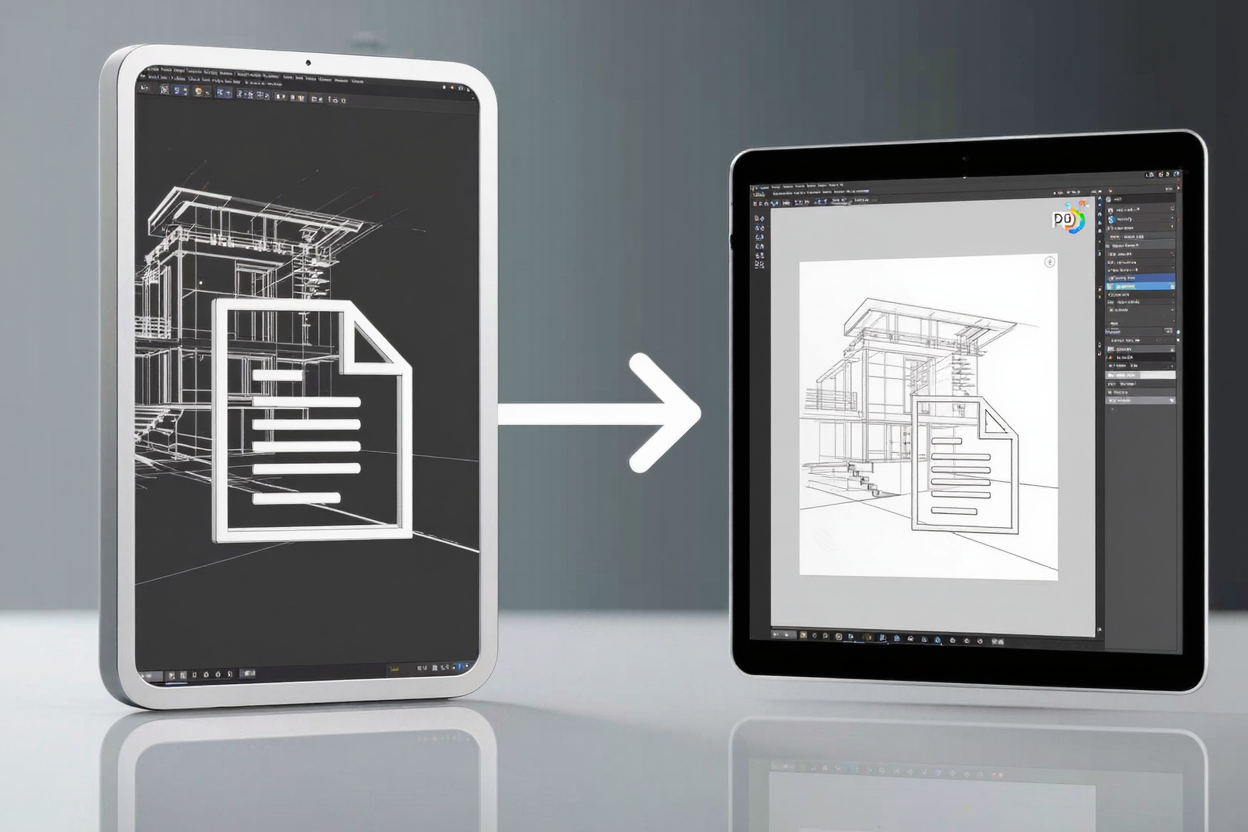
In the world of design and engineering, AutoCAD DWG files are the industry standard for creating detailed technical drawings. However, sharing these files can be problematic. Not everyone has AutoCAD software, and DWG files can be large and prone to compatibility issues.
This is where converting your DWG files to PDF becomes indispensable. PDF (Portable Document Format) offers universal accessibility, ensuring that anyone can view your designs without specialized software, maintaining visual integrity across different devices and operating systems. It’s the ideal format for collaboration, archiving, and presentation.
Why Convert DWG to PDF?
Converting your AutoCAD drawings to PDF offers a multitude of benefits, streamlining your workflow and improving communication. PDFs are lightweight, secure, and universally recognized, making them perfect for sharing technical information.
- Universal Accessibility: PDFs can be opened and viewed on virtually any device or operating system without needing AutoCAD. This simplifies sharing with clients, colleagues, and stakeholders who may not have CAD software.
- Preservation of Fidelity: PDFs accurately preserve the fonts, layouts, and vector graphics of your original DWG file, ensuring that your designs look exactly as intended.
- Enhanced Security: PDFs can be password-protected, preventing unauthorized access, printing, or editing. This is crucial for sensitive or proprietary design data.
- Reduced File Size: While DWG files can be quite large, PDFs often offer a more compressed format, making them easier to email, upload, and store.
- Printing and Archiving: PDFs are ideal for printing professional-quality drawings and serve as a stable, long-term archive format for your projects.
Understanding the Conversion Process
The most reliable and recommended method for converting AutoCAD DWG files to PDF is by utilizing AutoCAD's built-in plot or publish functionality. This ensures that all layers, scales, and plot styles are correctly translated into the PDF format.
While third-party online or desktop converters exist, they may not always capture the full fidelity and specific settings of your intricate AutoCAD drawings. Using the native software guarantees the highest level of accuracy and control over the output.
Step-by-Step: Converting DWG to PDF in AutoCAD
Follow these detailed steps to convert your AutoCAD DWG files to high-quality PDFs directly from the source software:
1. Open Your DWG File
Launch AutoCAD and open the DWG file you wish to convert. Ensure that your drawing is complete and all necessary layers are visible and correctly configured in the layout or model space you intend to plot.
2. Access the Plot Dialog Box
Navigate to the Application Menu (the red 'A' icon in the top-left corner) and select 'Print' > 'Plot'. Alternatively, you can type PLOT into the command line and press Enter.
3. Configure Plotter/Printer
In the Plot dialog box, under 'Printer/Plotter', select a PDF printer. AutoCAD typically includes a built-in option such as "DWG to PDF.pc3" or "AutoCAD PDF (General Documentation).pc3". Choose the one that best suits your needs.
4. Set Paper Size and Orientation
Select the desired paper size from the dropdown list (e.g., ANSI A, ISO A3, Letter). Below that, choose the drawing orientation, either 'Portrait' or 'Landscape', to match your drawing's layout.
5. Define Plot Area
Under 'Plot Area', specify what part of the drawing you want to convert:
- Layout: Plots the current paper space layout.
- Extents: Plots all objects in the drawing.
- Display: Plots what's currently visible on your screen.
- Window: Allows you to define a specific rectangular area by clicking two opposite corners on your drawing.
For precise control, 'Window' or 'Layout' are often preferred.
6. Set Plot Scale
If you're plotting from Model Space, select 'Custom' and set your desired scale (e.g., 1:100, 1/4" = 1'-0"). If you're plotting from a Paper Space Layout, it's generally best to check 'Fit to paper' or set the scale to 1:1, as the scaling should already be handled within your layout's viewports.
7. Choose Plot Style Table (Pen Assignments)
Under 'Plot Style Table (Pen Assignments)', select a CTB or STB file. This controls how colors, lineweights, and linetypes are translated in the PDF. Common choices include monochrome.ctb for black and white output or acad.ctb for color output. You can also create custom plot styles.
8. Preview and Plot
Before saving, always click the 'Preview' button to review how your drawing will appear in the PDF. This allows you to catch any errors in scale, orientation, or plot area. Once satisfied, click 'Plot' or 'OK' within the Plot dialog box.
9. Save Your PDF
AutoCAD will prompt you to choose a location and filename for your new PDF file. Select a destination, give it a meaningful name, and click 'Save'. Your DWG file is now successfully converted to PDF!
Managing Your PDFs with PDFAlone
Once your DWG is successfully converted to a PDF, you might find yourself needing to further refine or manage the document. This is where a robust PDF tools suite becomes invaluable. PDFAlone offers a comprehensive set of online tools to enhance your newly created PDFs.
Whether you need to reduce the file size for easier sharing, merge multiple drawing sheets into a single document, or add password protection for sensitive designs, tools designed to convert and edit PDFs online offer comprehensive solutions. You can compress your large CAD PDFs, split them into individual sheets, or even annotate them for review.
For instance, if your converted PDF contains raster images or if you're preparing other image assets for inclusion, optimizing their size is crucial for web performance and sharing. Consider using a dedicated <a href="https://pngminify.com" target="_blank" rel="noopener noreferrer">PNG Compressor</a> to ensure all visual elements are perfectly optimized without compromising quality.
FAQ
Q1: Why is PDF preferred over DWG for sharing technical drawings?
PDF is preferred for sharing because it's universally viewable without specialized software, maintains visual fidelity across devices, is smaller in file size, and offers security features like password protection, which DWG files typically do not.
Q2: Can I edit the CAD drawing once it's converted to PDF?
Generally, no. Once a DWG is converted to PDF, it becomes a static document. While you can add annotations or basic text edits using PDF editing tools, you cannot revert it to an editable CAD drawing or manipulate its architectural elements. For CAD edits, you must return to the original DWG file in AutoCAD.
Q3: What if my DWG has multiple layouts or sheets?
If your DWG file contains multiple layouts (paper space sheets), you can use AutoCAD's 'Publish' command instead of 'Plot'. The 'Publish' command allows you to select multiple layouts and plot them all to a single multi-page PDF or individual PDFs simultaneously, greatly enhancing efficiency.
Conclusion
Converting AutoCAD DWG files to PDF is a fundamental skill for anyone working with technical drawings. It bridges the gap between specialized design software and universal document sharing, making your work accessible, secure, and professional. By following the steps outlined, you can confidently transform your intricate designs into easily shareable PDFs.
Once your drawings are in PDF format, explore the powerful PDF tools suite available at PDFAlone to further optimize, secure, and manage your documents, ensuring they meet all your project requirements.