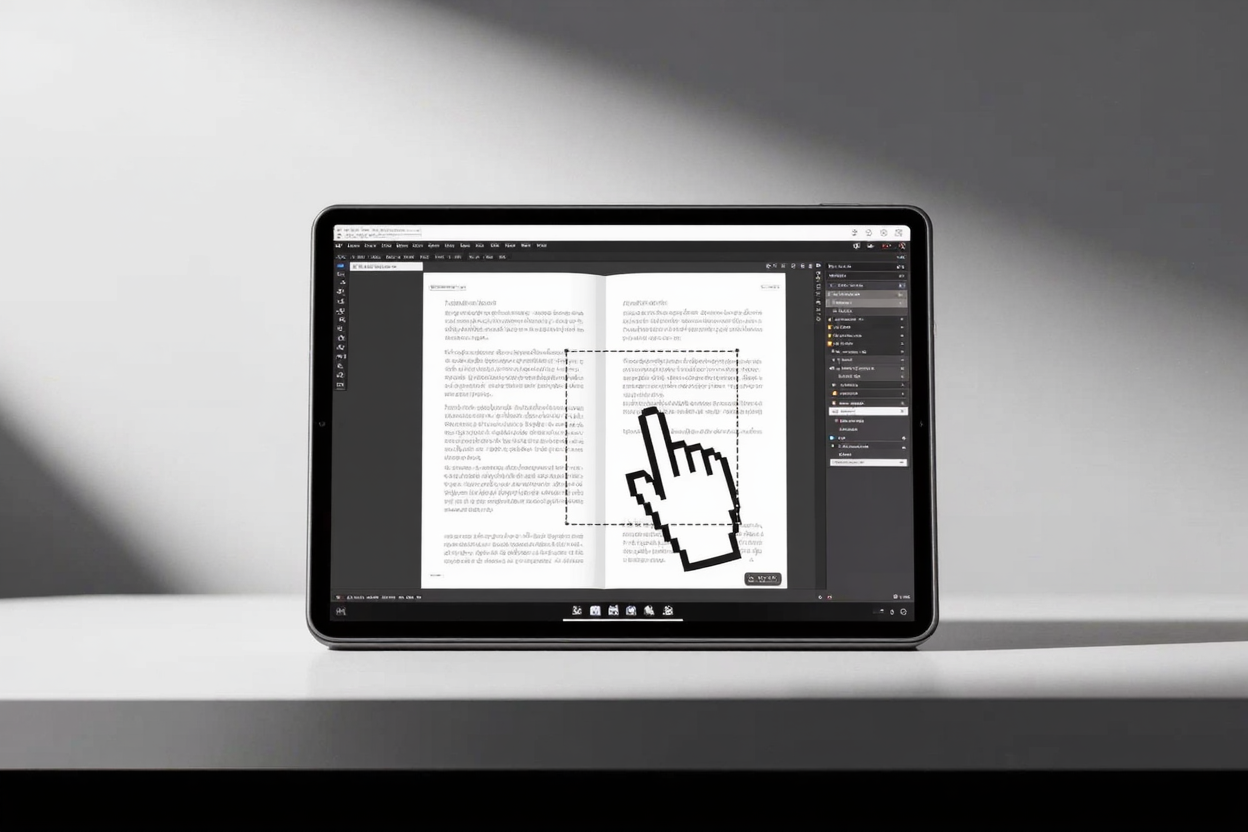
Unwanted margins can significantly detract from a PDF's appearance and usability. They waste valuable space, make printing more challenging, and can distract readers from the core content. Cropping is an essential step for anyone looking to create professional-looking documents, streamlined presentations, or optimized e-books.
Why Cropping PDF Margins Matters
Removing excess whitespace isn't just about aesthetics; it offers several practical benefits:
- Improved Readability: By eliminating distractions, cropping helps focus the reader's attention directly on the content, making documents easier to consume.
- Professional Appearance: A clean, margin-free document projects a polished and professional image, crucial for business reports, academic papers, and client presentations.
- Optimized Printing: Cropping can save ink and paper by ensuring that only necessary content is printed. It also helps fit documents to specific print dimensions or paper sizes more efficiently.
- Better Viewing on Devices: For those reading PDFs on tablets, smartphones, or e-readers, trimmed margins mean less scrolling and a more comfortable viewing experience, adapting better to smaller screens.
Introducing PDFAlone: Your Go-To Cropping Solution
PDFAlone offers a powerful, user-friendly online platform designed to handle all your PDF needs, including precise cropping. Our PDF tools suite makes the process straightforward and efficient, allowing you to refine your documents directly in your web browser without the need for complex software installations. It's the ideal solution for quickly and accurately removing unwanted margins.
Step-by-Step Guide to Cropping PDFs with PDFAlone
Cropping your PDF pages with PDFAlone is a simple process that anyone can follow. Here's how to achieve perfectly trimmed documents in just a few clicks:
Step 1: Access the Cropping Tool
Begin by visiting pdfalone.com and navigating to the dedicated "Crop PDF" tool. Our intuitive interface is designed for ease of use, ensuring you can find the right tool quickly.
Step 2: Upload Your PDF Document
Once on the cropping page, you'll be prompted to upload your PDF file. You can either drag and drop your document directly into the designated area or click the upload button to browse your computer. Your files are handled securely and uploaded swiftly.
Step 3: Define Your Crop Area
This is where you precisely define what content to keep. PDFAlone provides an interactive interface where you can draw a rectangle around the desired content. You'll see a preview of your selection, and you can adjust the crop box by dragging its edges or entering exact measurements for pixel-perfect precision. You can choose to apply these settings to all pages or select specific pages within your document.
Step 4: Preview and Adjust
Before finalizing, PDFAlone offers a clear preview of your document with the new crop applied. Take this opportunity to review the cropped pages. If any adjustments are needed, you can easily go back and refine your selection until you are completely satisfied with the result.
Step 5: Download Your Cropped PDF
Once you're happy with the preview, click the "Crop" button. PDFAlone will process your document, and shortly after, you'll be able to download your new, margin-free PDF. It’s that simple to achieve a clean and professional look.
Advanced Tips for Optimal Cropping Results
To get the most out of your PDF cropping experience, consider these advanced tips:
- Batch Cropping for Consistency: For multi-page documents where the layout is consistent across all pages, apply the same crop settings to every page. This ensures uniformity and saves time, maintaining a professional look throughout your entire document.
- Understand Bleed and Trim: If you're preparing a PDF for professional printing, it's crucial to understand terms like "bleed" and "trim lines." Cropping should account for these to prevent unwanted white edges or cut-off content after the document is physically trimmed. For web developers, ensuring that content, including embedded PDFs, appears perfectly on a webpage is crucial. Just as an <a href="https://devtoolhere.com/tools/html-encode-decode" target="_blank" rel="noopener noreferrer">HTML Encoder</a> helps ensure web content is rendered correctly, cropping PDFs ensures they present cleanly without extra whitespace when embedded or linked.
- Maintain Aspect Ratio: When cropping images or specific content blocks within a PDF, maintaining the aspect ratio can prevent distortion. PDFAlone's tools often provide options to lock the aspect ratio for precise adjustments.
- Crop vs. Resize: Remember that cropping removes content or whitespace from the edges, while resizing scales the entire page up or down. Choose the right tool for your specific need. Often, when you need to convert and edit PDFs online, cropping is just one step in a comprehensive editing workflow.
FAQ
Does cropping a PDF permanently delete the content outside the cropped area?
Yes, when you crop a PDF using PDFAlone, the content outside the selected crop area is effectively removed from the document. This helps reduce file size and ensures only the relevant information is visible.
Can I crop individual pages in a multi-page PDF, or does it apply to all?
PDFAlone's cropping tool allows you the flexibility to apply your crop settings to all pages in a document or to select specific page ranges for individual cropping, giving you full control over your PDF.
Is PDFAlone's PDF cropping tool secure and free to use?
PDFAlone prioritizes your data security, ensuring all uploaded files are handled with advanced encryption and automatically deleted after processing. Our basic PDF cropping tool is available for free, with premium features offered through a subscription.
Don't let unwanted margins compromise the quality and professionalism of your PDFs. With PDFAlone, you have a powerful, easy-to-use tool at your fingertips to quickly and precisely crop your documents. Start refining your PDFs today for a cleaner, more impactful presentation.