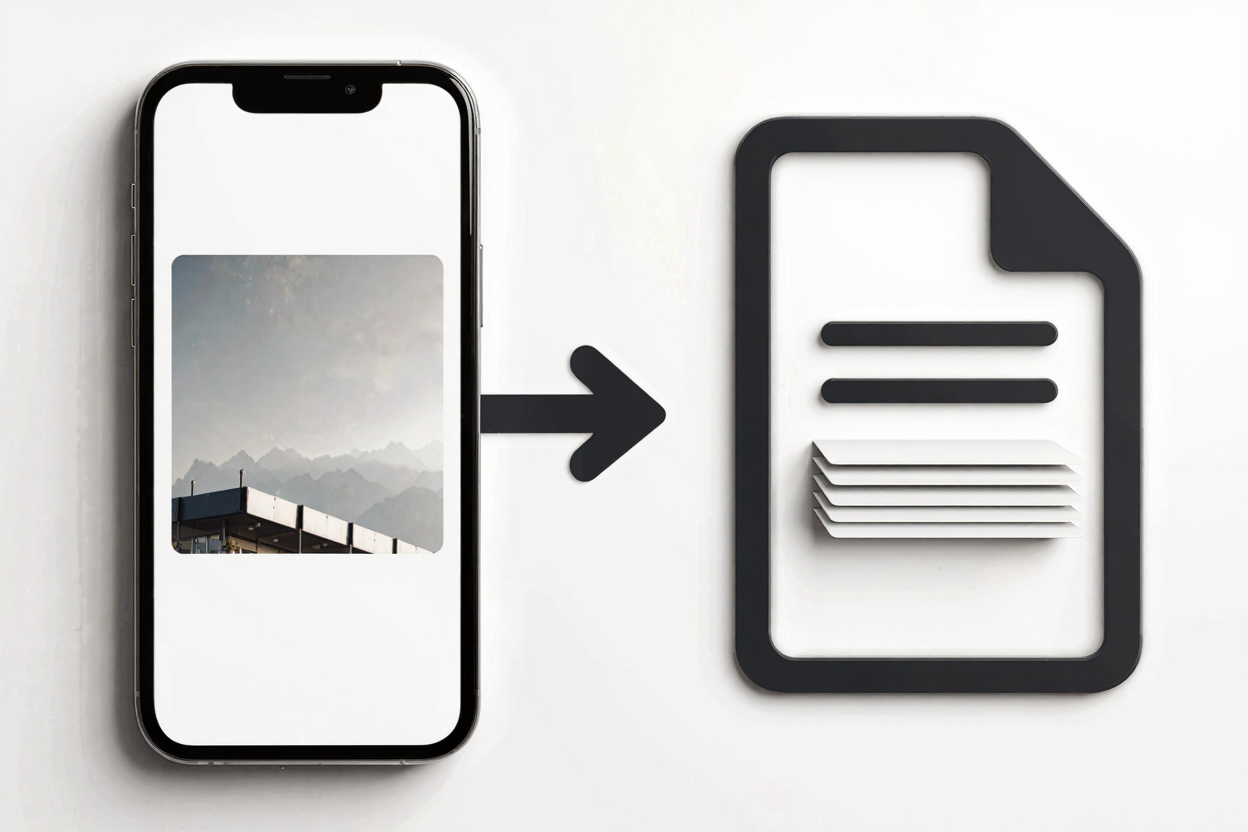
iPhone users often encounter HEIC (High Efficiency Image Container) files, a format known for its superior compression and quality. While HEIC is excellent for saving storage space on your device, its compatibility can be a hurdle when sharing photos with non-Apple users or when you need to submit images in a universally accessible format like PDF. Converting your HEIC iPhone photos to PDF documents streamlines sharing, archiving, and ensures your images are viewable on virtually any device without special software.
HEIC files, while efficient, aren't universally supported. Many older operating systems, certain photo editing software, and various online platforms may not recognize them natively. This can lead to frustration when you need to quickly share an important document or a collection of images. PDF, on the other hand, stands as the global standard for reliable document exchange, offering consistent formatting across all platforms and devices.
Fortunately, the process of transforming your HEIC images into professional PDF documents is simpler than you might think. With the right tools, you can easily bridge the compatibility gap and enjoy the universal accessibility of PDF. Whether you're compiling receipts, creating a portfolio, or simply ensuring your memories are preserved in a versatile format, converting to PDF is a smart move. Our comprehensive PDF tools suite offers robust solutions for all your document needs, making conversions effortless.
Understanding HEIC and Its Challenges
Introduced by Apple with iOS 11, HEIC is the default image format for iPhones and iPads, replacing JPG. Its main advantage is smaller file sizes without significant loss in quality, which helps save valuable storage on your device. However, this efficiency comes at the cost of broader compatibility. When you send a HEIC file to a Windows PC user or try to upload it to certain web services, you might find it isn't recognized, requiring an extra conversion step.
Why PDF is the Universal Solution
PDF (Portable Document Format) is a universally recognized file format developed by Adobe. It preserves fonts, images, graphics, and layout of any source document, regardless of the application or platform used to create it. This makes it ideal for professional documents, legal papers, e-books, and even image collections. PDFs are secure, widely viewable, and often preferred for official submissions and archiving due to their consistent presentation.
Methods to Convert HEIC iPhone Photos to PDF
Method 1: Using Your iPhone's Built-in Features
Your iPhone offers several convenient ways to convert HEIC photos to PDF without needing third-party apps or online services directly from your device.
Using the Notes App:
- Open the Photos app and select the HEIC images you wish to convert.
- Tap the Share icon (square with an arrow pointing up).
- Scroll down and select "Notes" from the sharing options. Create a new note or add to an existing one.
- Open the Notes app, find the note with your images, and tap the three dots (...) in the top right corner.
- Select "Print" from the menu.
- On the Print Options screen, pinch out on the image preview. This action converts the preview into a shareable PDF.
- Tap the Share icon again, and you can now save the PDF to Files, send it via email, or share it through other apps.
Using the Books App (or other PDF readers): Similar to Notes, you can often "Print to PDF" using the Share Sheet.
- Select your HEIC photos in the Photos app.
- Tap the Share icon.
- Scroll down and choose "Print."
- Pinch out on the preview image, then tap the Share icon to save or share as a PDF. Saving to "Books" will store it in Apple Books for easy access.
Method 2: Converting HEIC to PDF Online with PDFAlone
For a more streamlined approach, especially when dealing with multiple images or needing advanced PDF features, online tools like PDFAlone are invaluable. Our platform allows you to convert and edit PDFs online with ease, offering a robust solution that works across all devices and operating systems.
- Transfer HEIC Photos to Your Computer: First, get your HEIC photos from your iPhone to your computer. You can do this via AirDrop, iCloud Photos, email, or by connecting your iPhone with a USB cable.
- Visit PDFAlone: Open your web browser and navigate to https://pdfalone.com.
- Choose the HEIC to PDF Converter: Look for the image to PDF conversion tool.
- Upload Your HEIC Files: Click the "Upload" button or drag and drop your HEIC files directly into the designated area. You can often upload multiple files at once.
- Arrange and Convert: Once uploaded, you might have options to arrange the order of your images or adjust settings. After finalizing, click the "Convert" or "Create PDF" button.
- Download Your PDF: Your new PDF document will be ready for download in moments.
Method 3: Convert HEIC to a Standard Image Format First
If you prefer working with more common image formats before converting to PDF, you can first convert your HEIC files to JPG or PNG. This can be useful if you need to edit the images in a specific software that doesn't support HEIC.
- Convert HEIC to PNG/JPG: Use an online converter such as our dedicated <a href="https://convertminify.com/tools/heic-to-png" target="_blank" rel="noopener noreferrer">HEIC to PNG Converter</a>. Upload your HEIC files, convert them, and download the PNG or JPG versions.
- Convert PNG/JPG to PDF: Once you have your images in a standard format, you can then use a tool like the one found in our PDF tools suite to convert these images into a single PDF document. This two-step process offers flexibility and ensures maximum compatibility throughout.
Tips for Best Conversion Results
- Check Image Quality: Ensure your original HEIC photos are high resolution for the best PDF output.
- Batch Conversion: If converting many photos, use an online tool that supports batch processing to save time.
- Organize Files: Before converting, name your files logically and group them into folders for easier management after conversion.
- Review Your PDF: Always open and review your newly created PDF to ensure all images are present and correctly formatted.
Converting your HEIC iPhone photos to PDF documents doesn't have to be a complex task. With the built-in features of your iPhone or the powerful online solutions offered by PDFAlone, you can effortlessly transform your images into a universally compatible format. This ensures your important documents and cherished memories are accessible, shareable, and professionally presented, no matter where they need to go.
FAQ
Q1: Why are my iPhone photos saved as HEIC?
A1: Apple adopted HEIC (High Efficiency Image Container) as the default photo format for iPhones and iPads running iOS 11 and later. It offers superior compression compared to JPG, allowing you to store more photos on your device without significant loss in image quality.
Q2: Can I prevent my iPhone from taking HEIC photos?
A2: Yes, you can change your iPhone's camera settings to capture photos in JPG format instead of HEIC. Go to Settings > Camera > Formats, then select "Most Compatible" instead of "High Efficiency." Be aware that "Most Compatible" will result in larger file sizes.
Q3: Is it safe to convert HEIC photos to PDF online?
A3: Using reputable online converters like PDFAlone is generally safe. We prioritize your data security and privacy, ensuring your files are handled with care and deleted after conversion. Always verify the website's security (look for HTTPS in the URL) and privacy policy.
Ready to simplify your document management? Visit PDFAlone today to explore our full range of PDF tools and effortlessly convert, edit, and manage all your PDF documents with professional precision.