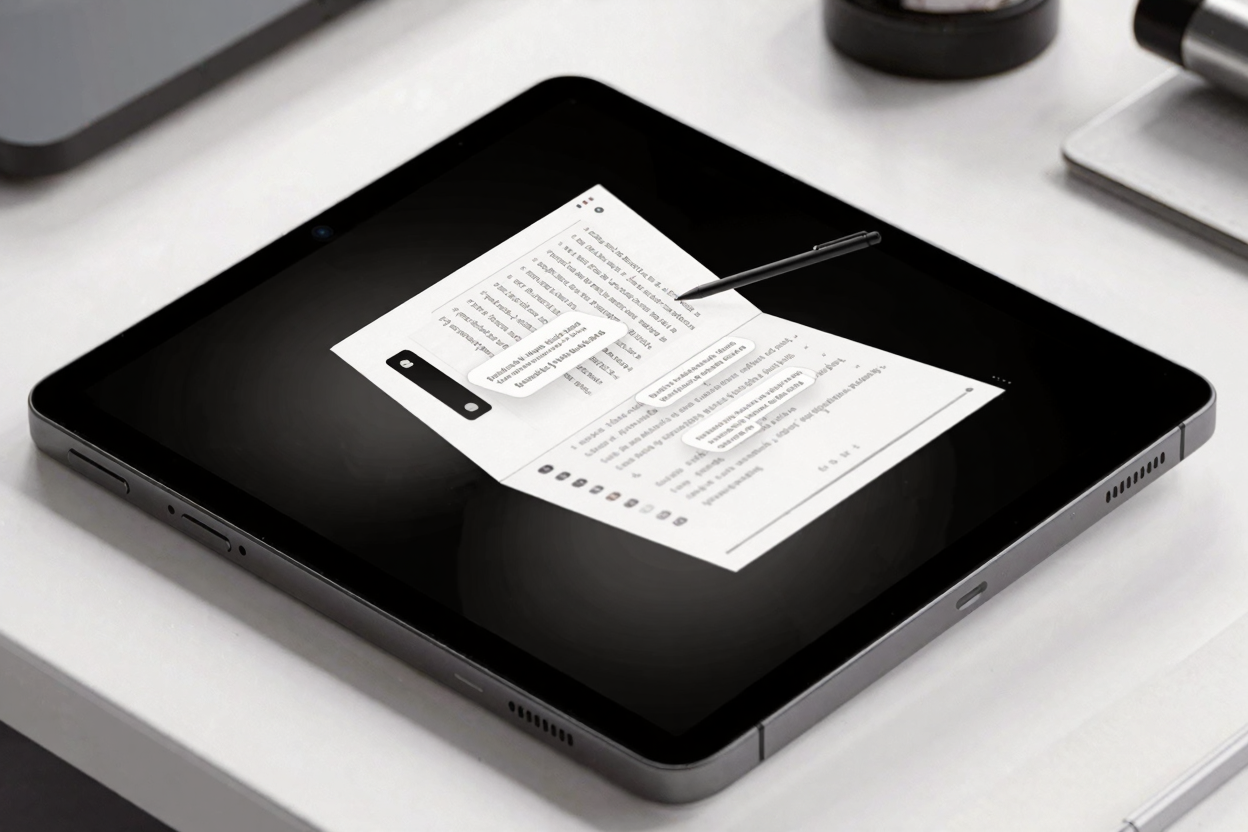
In today's fast-paced digital world, efficient document management is paramount. PDFs have become the standard for sharing information, but simply reading them isn't always enough. Whether you're a student reviewing lecture notes, a professional collaborating on a report, or an editor providing feedback, the ability to annotate and mark up PDF files is a game-changer.
Annotating PDFs allows you to interact directly with the content, making notes, highlighting key information, and suggesting changes without altering the original document. This not only boosts productivity but also streamlines communication and ensures everyone is on the same page. Let's explore the best ways to mark up your PDF files effectively.
The Power of Digital Annotation Tools
Gone are the days of printing out documents, grabbing a physical highlighter, and scribbling notes in the margins. Digital annotation tools offer a versatile and eco-friendly alternative, providing a rich array of features that enhance your interaction with PDF documents. These tools are accessible, often cloud-based, and integrate seamlessly into your workflow.
Highlighting and Underlining for Emphasis
One of the most fundamental annotation techniques is highlighting. Just like with a physical highlighter, you can digitally emphasize crucial text, drawing immediate attention to key points, definitions, or essential data. Underlining serves a similar purpose, often used for titles, important phrases, or elements that require specific attention.
Most PDF annotation tools allow you to customize highlight colors, making it easy to create a color-coding system for different types of information. This visual organization can significantly improve your comprehension and recall when reviewing documents later.
Adding Comments and Notes
Beyond simple emphasis, you often need to add more detailed feedback or personal reflections. Digital comment tools, often appearing as sticky notes or text bubbles, enable you to insert extensive notes without cluttering the document's main text. These comments can be expanded, edited, or hidden as needed.
This feature is invaluable for collaborative projects, allowing multiple reviewers to provide specific feedback on different sections. You can ask questions, suggest revisions, or elaborate on a particular point, fostering clear and organized communication among team members.
Drawing and Freehand Marks
Sometimes, a simple highlight or note isn't enough. Freehand drawing tools provide the flexibility to circle elements, draw arrows to connect related information, or even sketch quick diagrams directly onto the PDF. This is particularly useful for visual learners or when dealing with diagrams, charts, or blueprints.
Many tools offer various pen thicknesses and colors, giving you full creative control over your marks. It’s an intuitive way to interact with visual information and add a personal touch to your annotations.
Stamps and Shapes for Quick Feedback
For recurring feedback or status indications, stamps are incredibly efficient. Imagine instantly stamping a document with