Navigating lengthy PDF documents can often feel like searching for a needle in a haystack. Whether you're reviewing a comprehensive report, studying an e-book, or sifting through legal documents, the ability to quickly jump to specific sections is invaluable. This is precisely where PDF bookmarks and robust navigation tools come into play, transforming a potentially frustrating experience into an efficient and seamless one. Mastering these features can significantly boost your productivity and enhance your interaction with digital content.
What Are PDF Bookmarks?
PDF bookmarks are essentially a digital table of contents, offering direct links to specific pages or sections within a document. They act as signposts, allowing users to instantly navigate to key topics without endless scrolling. For document creators, bookmarks provide a structured overview, making their PDFs more user-friendly and professional. For readers, they offer a quick way to find relevant information, saving time and effort.
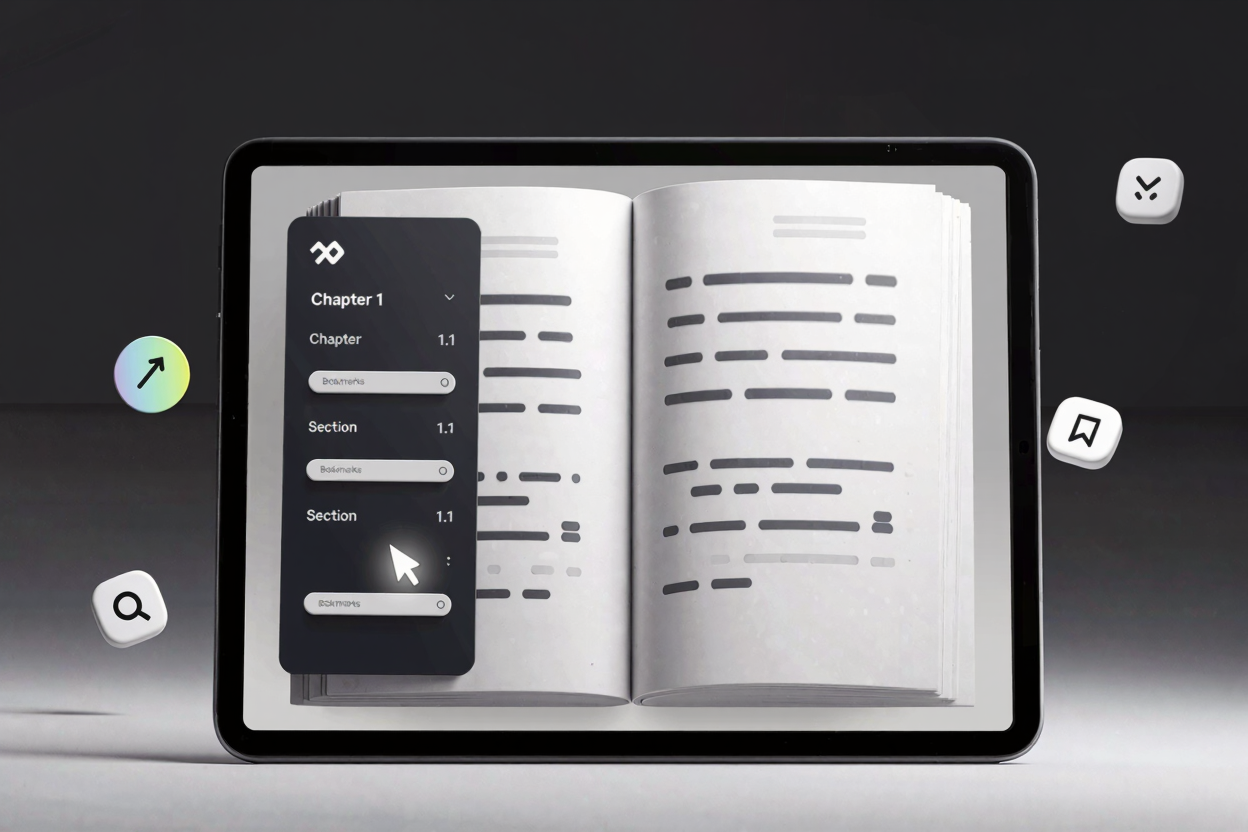
These navigational aids are typically displayed in a sidebar panel, presenting a hierarchical list of topics. Clicking on a bookmark instantly transports you to the corresponding page, making complex documents far more manageable. Think of them as sticky notes for your digital files, but with the added power of instant access.
Types of Bookmarks
Bookmarks aren't just simple links; they can be organized to reflect the document's structure.
Standard Bookmarks
These are individual entries that point to a specific page or view within the PDF. They are ideal for marking main chapters, sections, or important figures. A standard bookmark provides a direct jump, simplifying linear navigation.
Nested Bookmarks
For more complex documents, nested bookmarks allow for a hierarchical structure, much like an outline. You can create parent bookmarks for main chapters and then sub-bookmarks for individual sub-sections. This organized approach helps users understand the document's layout at a glance and drill down into specific details effortlessly.
Creating and Managing Bookmarks
Creating effective bookmarks is a straightforward process, especially with the right tools. Most modern PDF editors, including a comprehensive PDF tools suite like PDFAlone, offer intuitive features for this task. You typically highlight the text you want to bookmark, or navigate to the desired page, and then select the "Add Bookmark" option.
Once created, bookmarks aren't set in stone. You can easily rename them for clarity, reorder them to match changes in your document's structure, or delete them if they become redundant. Many tools also allow you to nest bookmarks by dragging and dropping them under parent entries, building a logical outline. This flexibility ensures your navigation system remains current and effective, even as your document evolves.
Advanced Navigation Techniques
Beyond basic bookmarks, PDFs offer several other powerful navigation features that can further enhance your reading experience.
Thumbnails
The thumbnails panel provides small preview images of each page in your PDF. This visual overview is incredibly useful for quickly scanning through a document and identifying pages by their layout or content. Clicking a thumbnail takes you directly to that page, offering an alternative visual navigation method.
Hyperlinks
PDFs can contain embedded hyperlinks that point to other sections within the same document, external websites, or even email addresses. These are distinct from bookmarks as they are typically embedded directly within the document's content, often appearing as clickable text or images. Hyperlinks are excellent for cross-referencing or directing readers to additional resources.
Search Function
For pinpointing specific words or phrases, the built-in search function is indispensable. Most PDF viewers allow you to quickly search the entire document for keywords, highlighting all instances. This is particularly useful when you know what information you're looking for but aren't sure where it's located.
Table of Contents (TOC)
While bookmarks serve as a dynamic table of contents, many PDFs also include a traditional, static TOC at the beginning. This provides a printable overview of the document's structure and can often contain clickable links to corresponding sections, complementing the interactive bookmarks.
Best Practices for Bookmark Usage
To maximize the effectiveness of your PDF bookmarks, consider these best practices:
- Clarity and Conciseness: Use clear, descriptive names for your bookmarks. Avoid jargon and keep titles brief yet informative, so users can understand their destination at a glance.
- Hierarchical Structure: For longer documents, utilize nested bookmarks to create a logical, outline-like structure. This helps readers grasp the overall organization and navigate complex information more easily.
- Consistency: Maintain a consistent naming convention and organizational style throughout your document's bookmarks. This predictability makes the navigation system more intuitive and user-friendly.
- Regular Review: If you frequently update your PDF, remember to review and update your bookmarks accordingly. Outdated bookmarks can lead to confusion and a poor user experience.
Enhance Your Document Workflow with PDFAlone
Whether you're creating detailed reports, academic papers, or interactive e-books, the ability to effectively manage and navigate your PDFs is crucial. Tools like PDFAlone provide a robust and user-friendly platform to not only create and manage bookmarks but also to convert and edit PDFs online with ease. From merging and splitting to compressing and securing, PDFAlone offers a comprehensive PDF tools suite designed to streamline all your document-related tasks. For those working with various image formats before integrating them into PDFs, a tool like the <a href="https://convertminify.com/tools/heic-to-png" target="_blank" rel="noopener noreferrer">HEIC to PNG Converter</a> can also prove incredibly useful.
FAQ
Q1: What is the main difference between a bookmark and a hyperlink in a PDF?
A1: A bookmark is typically listed in a sidebar panel, serving as a navigational entry point to a specific section or page, much like a digital table of contents. A hyperlink, on the other hand, is embedded directly within the document's content (e.g., clickable text or an image) and can link to internal sections, external websites, or even email addresses.
Q2: Can I create bookmarks in an existing PDF that doesn't have any?
A2: Yes, absolutely. With a PDF editor like PDFAlone, you can open any existing PDF document and add new bookmarks, edit existing ones, or delete those you no longer need. This allows you to customize the navigation of any PDF to better suit your needs.
Q3: Do PDF bookmarks work across all PDF viewers?
A3: Yes, PDF bookmarks are a standard feature of the PDF file format and are generally supported by all major PDF viewers and applications, including Adobe Acrobat Reader, Foxit Reader, and web browser-based PDF viewers. This ensures consistent navigation for your users regardless of their preferred software.
Ready to Master Your PDFs?
Don't let cumbersome navigation slow you down. By harnessing the power of PDF bookmarks and advanced navigation techniques, you can transform how you interact with digital documents. Explore the capabilities of PDFAlone today and discover how easy it is to create, manage, and navigate your PDFs efficiently.